
10 Voice Recording Tips for Crystal Clear Audio Every Time

You hit record, confident you're capturing something important. An hour later, you play it back and hear... muffled speech, background hum, and that weird echo that makes everything sound like it was recorded in a bathroom. Your recording is technically there, but practically useless.
Sound familiar? You're not alone. Most people treat voice recording as a "hit record and hope" activity. But the difference between a recording that's painful to listen to and one that's crystal clear often comes down to a few simple adjustments.
Whether you're recording lectures, meetings, interviews, or just capturing ideas on the go, these 10 voice recording tips will transform your audio quality immediately. No expensive equipment required.
Quick Navigation
- Why Recording Quality Matters
- Tip 1: Position Your Microphone Correctly
- Tip 2: Find the Quietest Space Available
- Tip 3: Eliminate Echo and Room Noise
- Tip 4: Control Your Recording Levels
- Tip 5: Use Airplane Mode
- Tip 6: Mind Your Handling Noise
- Tip 7: Do a Test Recording First
- Tip 8: Face the Speaker (Not Just the Mic)
- Tip 9: Keep Your Battery Charged
- Tip 10: Use External Microphones When It Matters
- Bonus: Post-Recording Processing
Why Recording Quality Matters
Bad recordings aren't just annoying. They're actively harmful to your goals.
For students, a muffled lecture recording means struggling to understand key concepts during revision. Research from the Cambridge Language Teaching journal shows that poor audio quality significantly reduces comprehension, even for native speakers.
For professionals, unclear meeting recordings create ambiguity. Was that deadline next Thursday or the Thursday after? What exactly did the client say about the budget? Unclear audio leads to miscommunication and mistakes.
For content creators, audio quality is the single biggest factor in whether people stick around. According to research from the University of Southern California and the Australian National University, poor audio quality makes speakers sound less credible and less intelligent to listeners. Viewers will tolerate mediocre video, but they'll click away from bad audio within seconds.
The good news? You don't need professional equipment to get professional results. Most audio problems come from technique, not technology. Master these 10 tips and you'll capture dramatically better recordings with whatever device you already own.
Tip 1: Position Your Microphone Correctly
The single most impactful change you can make is getting your microphone closer to the sound source. This isn't about being louder. It's about the ratio of voice to background noise.
The Proximity Principle
Sound follows the inverse square law, a fundamental principle of acoustics. Double the distance, and sound intensity drops to one-quarter. According to the Audio Engineering Society, this means background noise stays relatively constant while the voice you want gets much quieter.
Here's what this looks like in practice:
| Distance from Speaker | Voice Quality | Background Noise |
|---|---|---|
| 6 inches | Excellent | Minimal |
| 2 feet | Good | Noticeable |
| 6 feet | Fair | Dominant |
| 10+ feet | Poor | Overwhelming |
Practical Positioning
For phone recordings: Don't leave your phone flat on the table across the room. Place it within arm's reach of the speaker, ideally propped up with the microphone facing them. Most phone microphones are on the bottom edge.
For meetings: If you can't sit close to everyone, position your device in the center of the table rather than near yourself. You want equal distance from all speakers.
For lectures: Front-row recordings sound dramatically better than back-row ones. If front seats aren't available, consider asking permission to place your phone on the lecturer's desk.
For interviews: The ideal distance is 6-12 inches from the speaker's mouth. This is close enough to capture clear speech while avoiding "plosives" (the popping sounds from p's and b's).
Moving closer costs nothing and instantly improves every recording you make.
Tip 2: Find the Quietest Space Available
Every sound in your environment competes with the voice you're trying to capture. Your microphone can't distinguish between "important speech" and "background noise" - it records everything equally.
Common Noise Culprits
HVAC systems: Air conditioning, heating, and ventilation create constant low-frequency hum. You might not notice it consciously, but it muddies recordings significantly.
Electronic devices: Computer fans, refrigerators, fluorescent lights, and even some LED bulbs produce electronic hum or buzz.
Traffic and outdoor noise: Cars, construction, airplanes, and general city sounds bleed through windows and walls.
Other people: Background conversations, footsteps, and movement all get captured.
Finding Quiet
Before recording, do a quick noise audit:
- Stand still and close your eyes for 30 seconds
- Notice every sound you can hear
- Identify which sounds you can eliminate or reduce
Turn off fans and air conditioning if possible. Close windows and doors. Move away from refrigerators and HVAC vents. Choose smaller rooms over large open spaces.
If you can't eliminate noise, at least position yourself so the noise source is behind your microphone. Most microphones are somewhat directional - they pick up what's in front more than what's behind.
Tip 3: Eliminate Echo and Room Noise
Even in a quiet room, you might capture something called "room tone" or echo. This happens when sound bounces off hard surfaces before reaching the microphone.
Understanding Echo
Sound travels in waves. In an empty room with hard walls, these waves bounce multiple times before dying out. Your microphone captures both the direct sound and these reflections, creating a hollow, echoey quality.
You've experienced this in bathrooms, gymnasiums, and empty conference rooms. The sound feels "big" but unclear.
Reducing Echo
Soft surfaces absorb sound. Carpet, curtains, upholstered furniture, and even clothing all help dampen reflections. A carpeted room with heavy curtains sounds dramatically better than a tile-floored room with bare walls.
Strategic positioning helps. Recording in a corner often works well because you reduce the directions sound can travel. Recording near bookshelves (books are excellent sound absorbers) or near heavy curtains also helps.
DIY sound treatment. For important recordings, you can create a makeshift sound booth:
- Record inside a closet full of clothes
- Drape a heavy blanket over a table and record underneath
- Position pillows or cushions around your recording space
- Hang blankets on walls temporarily
These solutions might feel silly, but they work. Professional podcasters often record in closets because the dense hanging clothes create excellent sound absorption.
Tip 4: Control Your Recording Levels
Recording levels determine how loud your audio is captured. Get them wrong and you'll either have inaudible whispers or distorted, clipped audio that no amount of editing can fix.
Understanding Levels
Audio levels are measured in decibels (dB). Most recording apps show a visual meter that bounces with the sound. The goal is keeping your levels in the "sweet spot":
- Too quiet (below -20dB): You'll have to amplify later, which also amplifies noise
- Just right (-12dB to -6dB): Clear audio with headroom for louder moments
- Too loud (above 0dB): Clipping and distortion that's impossible to fix
Setting Proper Levels
Most phone apps handle levels automatically, which usually works fine. But automatic gain can cause problems:
- Quiet moments get amplified (boosting background noise)
- Sudden loud sounds get clipped before the app can adjust
- The recording "pumps" as levels constantly change
If your app offers manual level control, use it:
- Start recording and speak at normal volume
- Watch the meter and adjust until peaks hit around -6dB
- Leave some headroom for unexpected loud moments
If you're stuck with automatic levels, maintain consistent distance from the microphone. Moving closer and farther causes the automatic gain to constantly adjust, creating uneven audio.
Tip 5: Use Airplane Mode
Your phone is a miracle of modern technology. It's also a radio transmitter that creates interference with your recordings.
The Interference Problem
Cell phones constantly communicate with towers, searching for networks and transmitting data. This creates electromagnetic interference that microphones can pick up as buzzing, clicking, or that distinctive "dit-dit-dit-dit" sound you hear when a phone is near speakers.
Even when you're not actively using cellular features, your phone is still chatting with towers in the background.
The Simple Fix
Put your phone in airplane mode before recording. This disables all radio transmitters (cellular, WiFi, Bluetooth) and eliminates the interference.
Yes, you'll lose connectivity during the recording. That's actually a benefit - no notification sounds or vibrations to interrupt your audio.
If you need WiFi or Bluetooth for your recording setup, enable those selectively after turning on airplane mode. Just cellular off makes a noticeable difference.
This costs nothing, takes two seconds, and removes an entire category of audio problems.
Tip 6: Mind Your Handling Noise
Every time you touch your recording device, you're adding noise. The microphone picks up physical vibrations from handling, creating thumps, rustles, and scraping sounds.
Sources of Handling Noise
Direct touch: Picking up, adjusting, or shifting your phone during recording Surface transmission: Vibrations from the table your device sits on Cable noise: Movement of headphone or microphone cables Clothing rustle: Friction from shirts, jackets, or jewelry near the microphone
Minimizing Handling
Set it and forget it. Put your device down before recording starts and don't touch it until you're done. Every adjustment creates noise.
Use a stable surface. A solid table beats a wobbly stand. Place your device on something that won't vibrate from footsteps or bumps.
Isolate from vibrations. Put a folded cloth, mousepad, or piece of foam under your device. This dampens vibrations from the surface it sits on.
Be aware of cables. If using external microphones, secure cables so they don't move or rub against surfaces.
For important recordings, record yourself handling the device beforehand. Play it back and you'll be surprised how much noise simple movements create. That awareness alone helps you stay still during actual recordings.
Tip 7: Do a Test Recording First
The most overlooked voice recording tip is simply checking that everything works before you need it.
Why Test Recordings Matter
Test recordings reveal problems you can still fix:
- Microphone pointing the wrong direction
- Levels too low or too high
- Background noise you didn't notice
- Echo or room acoustics issues
- Storage space or battery concerns
- App settings that need adjustment
Discovery these issues during your important meeting or lecture is too late. A 30-second test beforehand catches everything.
The Quick Test Protocol
Before any important recording:
- Record 30 seconds of talking at normal volume
- Play it back with headphones (speakers mask many problems)
- Listen for:
- Is the voice clear and centered?
- Can you hear background noise?
- Is there echo or room sound?
- Are levels consistent?
- Adjust and retest if anything sounds off
This takes under two minutes and has saved countless recordings from preventable problems.
Pro tip: Speak the same way you will during the actual recording. If you'll be presenting loudly, test at that volume. If you'll be having a quiet conversation, test quietly.
Tip 8: Face the Speaker (Not Just the Mic)
This tip seems obvious but gets violated constantly. The direction your microphone faces matters, but so does the direction the speaker faces.
How Directional Sound Works
Human speech is directional. We project sound forward from our mouths. Speech aimed toward a microphone arrives clearly; speech aimed away arrives muffled and indirect.
Additionally, most microphones have a "pickup pattern" - they're more sensitive in certain directions. Phone microphones typically have a cardioid pattern, meaning they capture best from directly in front.
Optimal Positioning
The speaker should face the microphone. Not just be in the same room, but actually oriented toward it. A speaker talking toward a window while the phone sits behind them will sound distant and muffled.
For interviews: Position yourself so both speakers face each other AND the microphone sits between you, capturing both.
For lectures: The microphone should face the lecturer. If you're in the back row, your phone pointing at your face captures you shifting in your seat, not the professor explaining concepts.
For meetings: Central placement works, but if one person dominates the conversation, angle the microphone toward them.
Think about it like a flashlight. The microphone "illuminates" sound in a certain direction. Point it at what matters.
Tip 9: Keep Your Battery Charged
Nothing kills a recording session like a dead battery. And in the race to save power, your phone might actually sabotage your recording quality.
The Battery Problem
When phone batteries get low, devices enter power-saving modes that can:
- Reduce microphone sensitivity
- Lower processing power (affecting noise cancellation)
- Throttle the recording app
- Force the phone to shut down mid-recording
Losing the last 20 minutes of a two-hour lecture because your battery died is devastating.
Battery Best Practices
Start with at least 50% charge for any significant recording. For hour-plus recordings, aim for 80%+.
Disable power-saving mode if your phone activates it automatically. You want full performance during recording.
Turn off unnecessary features to conserve power:
- Reduce screen brightness
- Close background apps
- Use airplane mode (helps battery AND audio quality)
- Turn off location services
Carry a power bank for extended recording sessions. Some will let you charge while recording.
Know your device's limits. Test how long your phone can record continuously on a full charge. An iPhone typically handles 2+ hours easily; older Android phones may struggle.
Running out of storage is equally frustrating. Check available space before long recordings and clear unnecessary files if needed.
Tip 10: Use External Microphones When It Matters
Your phone's built-in microphone is convenient but limited. For recordings where quality really matters, external microphones offer dramatic improvement.
When External Mics Make Sense
Interviews and podcasts: The quality difference is immediately audible Important meetings: When you need every word captured clearly Content creation: YouTube, TikTok, online courses Lectures in large halls: When you can't sit close to the speaker Outdoor recording: When wind and environment noise are factors
Types of External Microphones
Lavalier (lapel) microphones: Clip to clothing near the speaker's mouth. Great for interviews and presentations. Prices range from $15 to $300+.
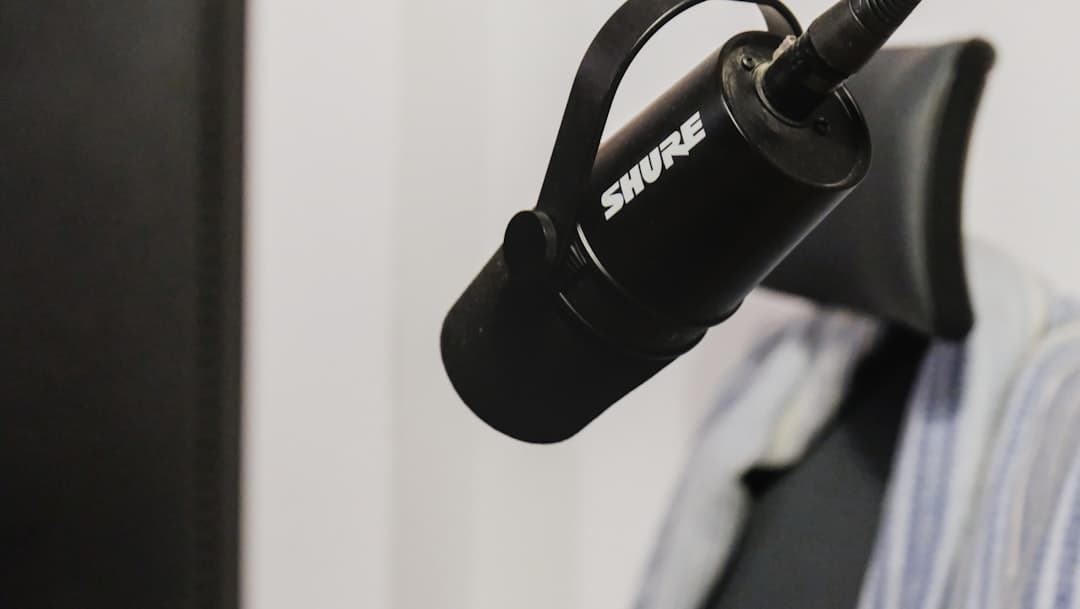
USB/Lightning microphones: Plug directly into your phone. Offer much better quality than built-in mics. Popular options include the Shure MV88 and Rode VideoMic ME.
Wireless systems: A small transmitter clips to the speaker while a receiver plugs into your phone. More expensive but extremely flexible.
Shotgun microphones: Highly directional mics that reject sound from the sides. Excellent for recording speakers from a distance.
Budget-Friendly Recommendations
You don't need expensive gear to see improvement:
| Type | Budget Option | Quality Level |
|---|---|---|
| Lavalier | Boya BY-M1 (~$20) | Good |
| USB-C Mic | Fifine K053 (~$25) | Good |
| Wireless | RØDE Wireless GO II (~$250) | Excellent |
Even a $20 lavalier microphone positioned correctly will outperform your phone's built-in mic in most situations.
Bonus: Post-Recording Processing
Sometimes despite your best efforts, recordings need help. Modern tools can rescue problematic audio.
AI-Powered Enhancement
AI transcription tools like SpeakNotes don't just convert speech to text - they're trained to understand speech even in challenging audio conditions. Modern models like OpenAI's Whisper use deep neural networks trained on hundreds of thousands of hours of diverse audio data, enabling them to extract clear content from recordings that sound unintelligible to human ears.
Basic Editing
Free tools like Audacity (desktop) or Dolby On (mobile) can:
- Remove constant background noise
- Normalize volume levels
- Cut out unwanted sections
- Apply equalization to clarify speech
When to Accept Limitations
Some audio problems can't be fixed:
- Severe clipping and distortion
- Completely unintelligible speech
- Important words spoken during loud noise events
This is why capturing good audio matters more than fixing bad audio. Prevention beats cure.
Quick Reference Checklist
Before your next important recording, run through this checklist:
Setup
- Device charged above 50%
- Sufficient storage space
- Airplane mode enabled
- Recording app opened and tested
Environment
- Quietest available location
- Noise sources identified and minimized
- Windows and doors closed
- HVAC turned down if possible
Positioning
- Microphone close to speaker (6-12 inches ideal)
- Speaker facing the microphone
- Device on stable, vibration-free surface
- Soft surfaces nearby to reduce echo
Final Check
- 30-second test recording completed
- Playback confirms good audio quality
- Levels appropriate (not clipping)
- All adjustments made before the real recording
Taking Your Recordings Further
Crystal clear audio is just the beginning. What you do with your recordings determines their actual value.
AI transcription transforms audio into searchable, skimmable text. Instead of scrubbing through hours of recordings, you can search for specific topics, highlight key points, and create summaries.
Our meeting summary tool goes further, automatically extracting action items, decisions, and key points from your recordings. Perfect for turning meeting recordings into actionable documentation.
The combination of quality recording techniques and AI processing creates a powerful knowledge capture system. You get complete, accurate records without spending hours manually reviewing every recording.
Conclusion
Great voice recordings don't require expensive equipment or professional training. They require attention to a few key principles:
- Get the microphone close to the sound source
- Minimize background noise and echo
- Set proper levels and avoid handling noise
- Test before recording anything important
- Use external microphones when quality really matters
Start with just one or two of these tips on your next recording. You'll hear the difference immediately. Build from there, and soon these practices become automatic.
The goal isn't perfection. It's capturing audio that's clear enough to be useful - whether that's reviewing lectures, documenting meetings, or creating content others will actually want to listen to.
Ready to do more with your recordings? Try our free transcription tools and experience how AI can turn your improved audio into organized, searchable knowledge.

Jack is a software engineer that has worked at big tech companies and startups. He has a passion for making other's lives easier using software.